![Logo Aqurate White.png]](https://aqurate.ai/hs-fs/hubfs/Logo%20Aqurate%20White.png?height=40&name=Logo%20Aqurate%20White.png)
⏳ Duration: 5 minutes
🎚️ Complexity: low
📌 Prerequisites
1. An Aqurate account (get it at aqurate.ai)
2. A Gomag account with Admin access level
Aqurate Search will replace your store’s default search with a faster and more intuitive product discovery experience, helping shoppers find relevant products with less effort.
In this article, you’ll learn how to activate your Aqurate account and enable Search directly from the Gomag platform.
Step 1 - Get your API key from Aqurate
Log into your Aqurate account, copy the API key (during the set-up phase) or generate an API key for Gomag (at a later stage, if needed).
Step 2 - Install & activate the Aqurate app in Gomag
In your Gomag shop, go to Gomag Apps (left sidebar), and select Aqurate.
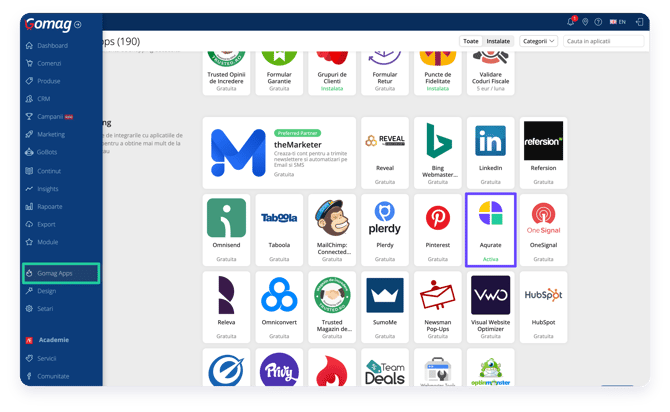 Paste the API key from Step 1, click on Salveaza and afterwards on Activeaza. Make sure that Aqurate Search option is active.
NOTE: if you also want to enable our Personalize Recommendations widgets select the ones that you want to display in your shop and hit Salveaza.
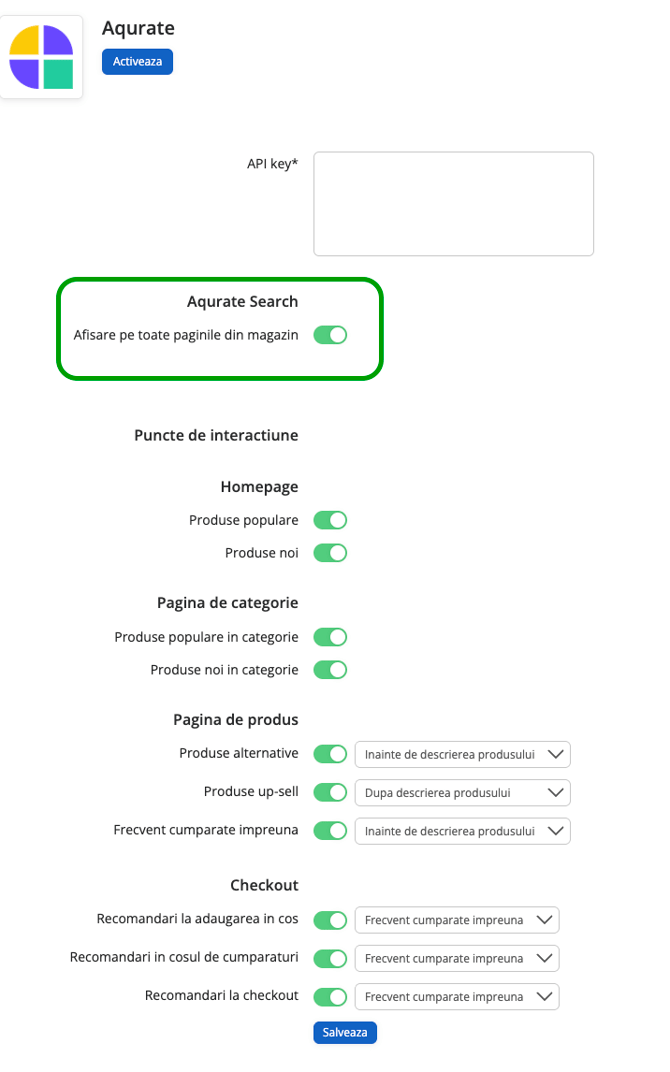
🤖 Aqurate comes with a predefined set of widgets already activated by default during the installation in Gomag, providing an optimized starting point that you may keep or adjust at any time.
Step 3 - You're done!
⌛️ Please note that it might take up to 24 hours for the Aqurate Search to be active on the website if you just connected your shop or just activated the Search add-on. Measurement data will also take up to 24 hours to appear in your dashboard.
Next steps?
You will receive an email notification once the shop connection has been finalised.
💡 Please consult the Search FAQ section to get more insights about your new Search add-on.
Should you have more questions, please contact us: support@aqurate.ai